The Image Manifest
Here is an example of an image manifest:
https://collections.library.yale.edu/iiif/2/32338667/info.json
If you followed that link, you might have seen a page that looked like code. In fact, it is encoded, using the standards of IIIF, to transmit information about a specific image. What is really interesting for us, however, is the URL.
Do you see at the part at the end of the URL that says info.json? That info.json part is telling the image repository to send us information about the image. We can change this part to tell the repository to send us the actualy image. Notice the difference in the following url and follow the link:
https://collections.library.yale.edu/iiif/2/32338667/full/full/0/default.jpg
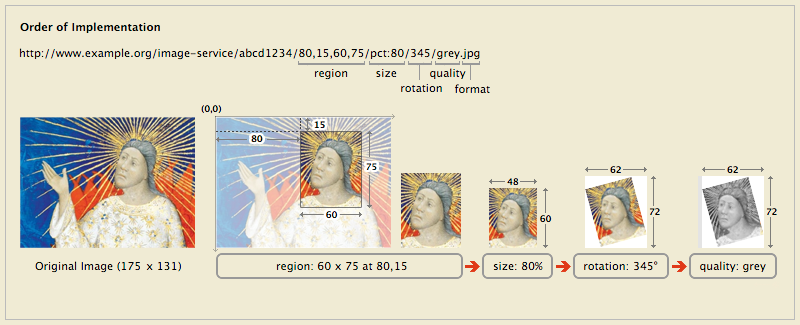
The difference in the second link is that we have replaced info.json with full/full/0/default.jpg. This last part of the URL is really important. Each of the four parts, separated by slashes, let you control different aspects of how the image is displayed: region, size, rotation, quality, and format. The tool below allows you to inspect a IIIF image URL and make changes in real time. Copy and past the URL above (the one ending in default.jpg) and paste it into the box below. You'll see the image is much too large for this webpage. We said that the four parts of the URL correspond to region, size, rotation, quality, and format. So, we can alter the second part to control the size of the image. Changing the second "full" to "pct:20", for example, we get:
https://collections.library.yale.edu/iiif/2/32338667/full/pct:20/0/default.jpg
Try making this change in the tool below.
The "pct:20" part indicates that we would like image to be 20% of its full size. You can also specify the exact width (in pixels) that you would like you image to be. Changing pct:20 to "500,500" would give you an image that is stretched to 500 pixels wide and 500 pixels high. Not terribly useful, perhaps. Try removing the height, leaving you:
https://collections.library.yale.edu/iiif/2/32338667/full/500,/0/default.jpg
By leaving the height empty the URL is simply saying, "set the height to whatever is appropriate for the width".
Now try changing the third part, the currently set to 0. This part represents degrees of rotation. You can set this to be anything from 0 to 359.
The first part of the URL is perhaps the most powerful and useful. This part allows you to specify a region of the image that you would like to extract:
https://collections.library.yale.edu/iiif/2/32338667/3000,1800,1000,1400/full/0/default.jpg
This link says, "Crop the image to a region that starts at coordinates 3000, 1800 and is 1000 pixels wide and 1400 pixels high". Normally you would never type these in manually, you would use a tool designed for this purpose. But it is interesting to try it out.
The graphic below explains the four parts of the IIIF Image URL: