Mirador
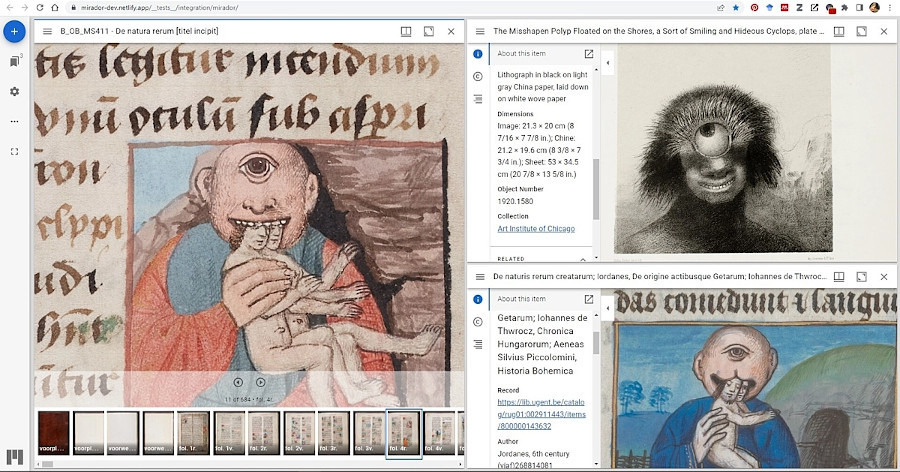
You have found an interesting manuscript at the British Library and wish to compare it with a manuscript from Bruges Public Library and a painting from the Getty Museum in Los Angeles. Each of these institutions has their own viewers, with specific rules and functionalities. This can be burdensome for researchers, going back and forth between websites. The Mirador viewer allows you to gather these objects (images + descriptions!) in a single uniform viewing environment.
How to
- Select and copy the manifest URL of your object.
- Open the website https://mirador-dev.netlify.app/__tests__/integration/mirador/. (Close the examples by Van Gogh and of Krishna.)
- Click ‘start here’.
- Click ‘add resource’.
- Add the manifest URL and click ‘add’. Your object is now the first in the list of resources.
- Click on your object to add it to your collage.
- Repeat these steps as often as you wish to add objects to your collage.
- Save your collage by clicking on the three dots in the menu on the right. Hit 'export workspace' > ‘view workspace configuration’, select the body of text and save it to a document or notepad for later use. Open a collage by importing the saved text into ‘import workspace’.